Table of Contents
Virtual Host
We currently have a single Proxmox VE host in the space. This is used to run various hackerspace services and may be used by members to run VMs for experiments or projects.
Accessing Proxmox
Proxmox has a web interface which is available here: https://vmhost.lab.glashack.space/. You can sign in using SSO - see: identity
If this is your first time signing into Proxmox you'll likely see nothing as you need to be granted appropriate permissions by one of the Proxmox admins:
- Jonas
Once you have the correct permissions you'll be able to see the main dashboard for our host: 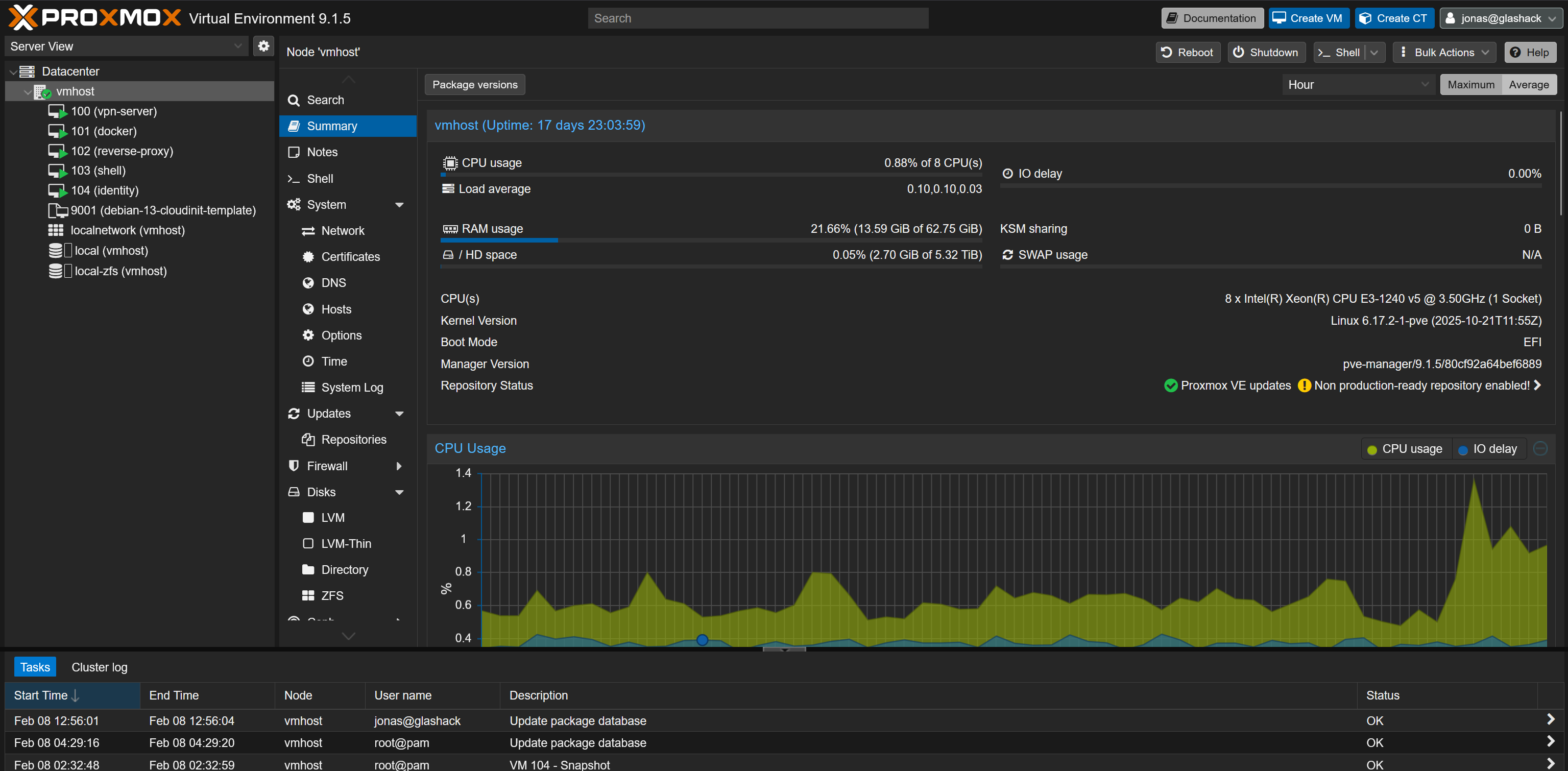
Creating VMs
Using a template
The easiest way to create a VM is to use a template. These can be seen on the left hand side and will start with a 9000 number, e.g. 9001 (debian-13-cloudinit-template).
Right click on the template and select Clone. Change the Mode to Full Clone and give the VM a name (this will become it's hostname).
Once the VM has been cloned (you can see a loading wheel in the bottom log bar) you can modify its settings to suit your requirements. The main things to look at are:
Hardware:
- Memory
- Processors
- Hard Disk
Cloud-Init:
- User (the default user that will be created with sudo privaleges)
- Password
- SSH public key
qemu-guest-agent
This agent should be installed on VMs whenever possible (https://blog.sreesreejuks.com/Installing-and-Configuring-QEMU-Guest-Agent-in-Proxmox-VMs/) It enables:
- Proper shutdown/reboot: Instead of simulating power button presses, Proxmox can request graceful shutdowns
- Freezing filesystems: Enables consistent snapshots by freezing filesystems during snapshot creation
- Memory statistics: Get accurate memory usage instead of estimates
- Network information: Retrieve guest IP addresses directly
- File operations: Execute file operations within the guest from the host
- VM backup: Improved backup consistency
On Debian based systems the following commands can be used:
sudo apt update
sudo apt install qemu-guest-agent
sudo systemctl enable qemu-guest-agent
sudo systemctl start qemu-guest-agent
Proxmox setup
The host PC has:
- An Intel Xeon E3-1240 v5 CPU @ 3.50GHz
- 64GB of DDR4 RAM (4 x 16GB @ 2400MT/s)
- 2 x 6TB drives in a zpool (mirror)
Instructions for installing Proxmox can be found on the Proxmox website: https://proxmox.com/en/products/proxmox-virtual-environment/get-started
Once the installation is complete there are several initial setup steps that have been followed to make the server more usable.
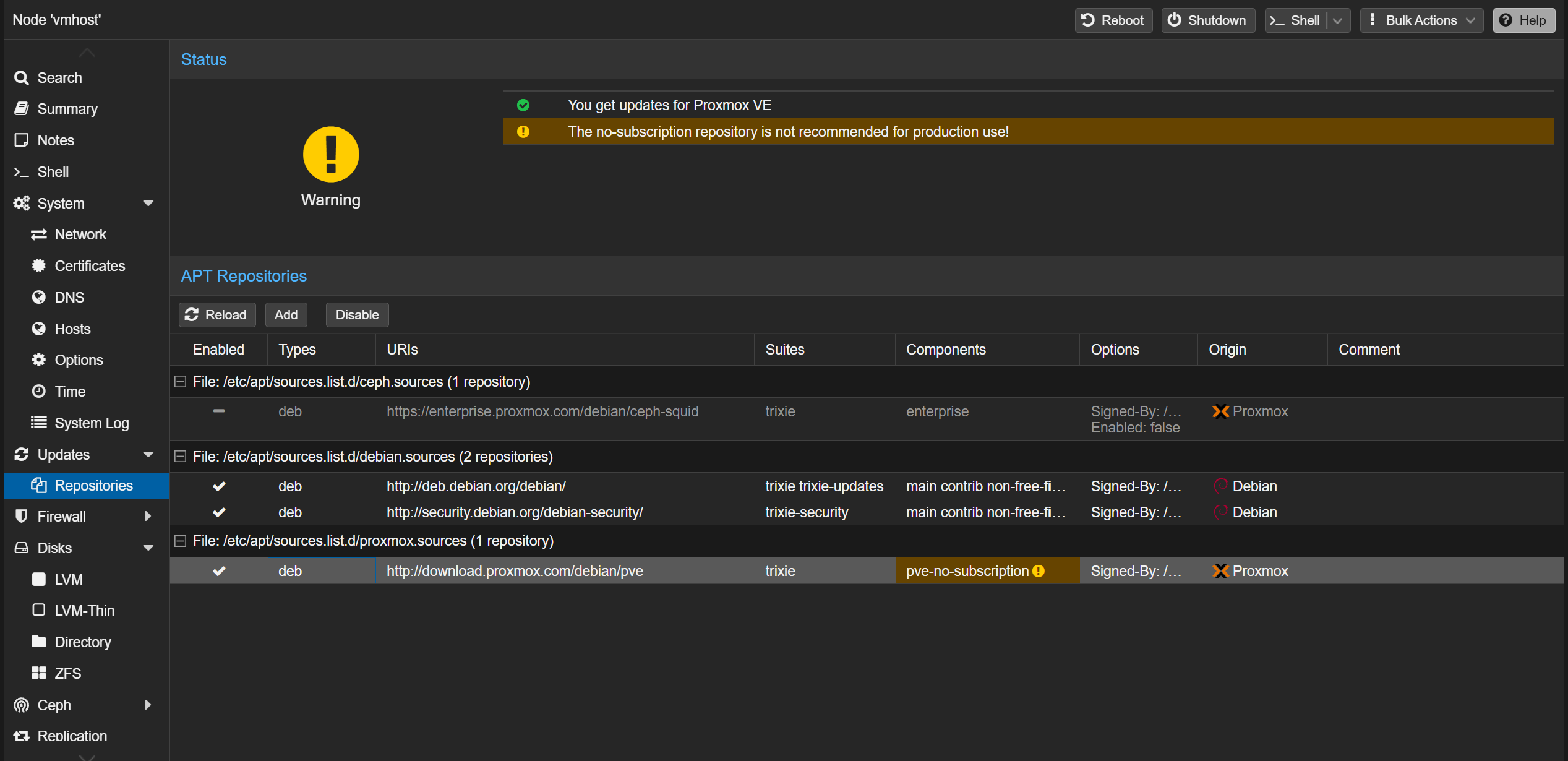
no-subscription repo for Debian updates
The no-subscription repo has been added and enabled while the ceph repo has been disabled. More info: https://pve.proxmox.com/wiki/Package_Repositories#sysadmin_no_subscription_repo
'No valid subscription' message
By default Proxmox will show a pop-up message warning that we don't have a subscription. It is possible to remove this message by editing /usr/share/javascript/proxmox-widget-toolkit/proxmoxlib.js to comment out the lines which check that the subscription is not active as shown:
checked_command: function (orig_cmd) {
            Proxmox.Utils.API2Request({
                url: '/nodes/localhost/subscription',
                method: 'GET',
                failure: function (response, opts) {
                    Ext.Msg.alert(gettext('Error'), response.htmlStatus);
                },
                success: function (response, opts) {
                    let res = response.result;
                    if (
                        res === null ||
                        res === undefined ||
                        !res // ||
                        // res.data.status.toLowerCase() !== 'active'
                    ) {
                        Ext.Msg.show({
                            title: gettext('No valid subscription'),
                            icon: Ext.Msg.WARNING,
                            message: Proxmox.Utils.getNoSubKeyHtml(res.data.url),
                            buttons: Ext.Msg.OK,
                            callback: function (btn) {
                                if (btn !== 'ok') {
                                    return;
                                }
                                orig_cmd();
                            },
                        });
                    } else {
                        orig_cmd();
                    }
                },
            });
        },
Run systemctl restart pveproxy to apply the change.
Any updates to the Proxmox host may reset this fix meaning it must be applied again.
HTTPS certificates
To get trusted HTTPS certificates for the Proxmox web interface (without having to expose it to the internet) we use LetsEncrypt certs with the DNS challenge. https://pve.proxmox.com/wiki/Certificate_Management#sysadmin_certs_acme_dns_challenge
A key is generated on the DNS server and added into the config.
router# cd /var/named/etc
router# tsig-keygen -a HMAC-SHA512 vmhost-key
key "vmhost-key" {
        algorithm hmac-sha512;
        secret "<secret key>";
};
router# vim named.conf # add key to DNS config with permission to update lab.glashack.space zone.
Unfortunately there is a bug with the default nsupdate script on Proxmox, the following bug report provides a workaround: https://bugzilla.proxmox.com/show_bug.cgi?id=2739#c2. This involves replacing the /usr/share/proxmox-acme/dnsapi/dns_nsupdate.sh script to store the (base64 encoded) key directly in the field rather than a path to the key file.
The original script is renamed to dns_nsupdate.sh.orig, the replacement script is stored in dns_nsupdate.sh.modified and a convenience script is stored in /root/check_dns_nsupdate.sh which should ensure the script persists after updates (added to the root crontab for 5am every day).
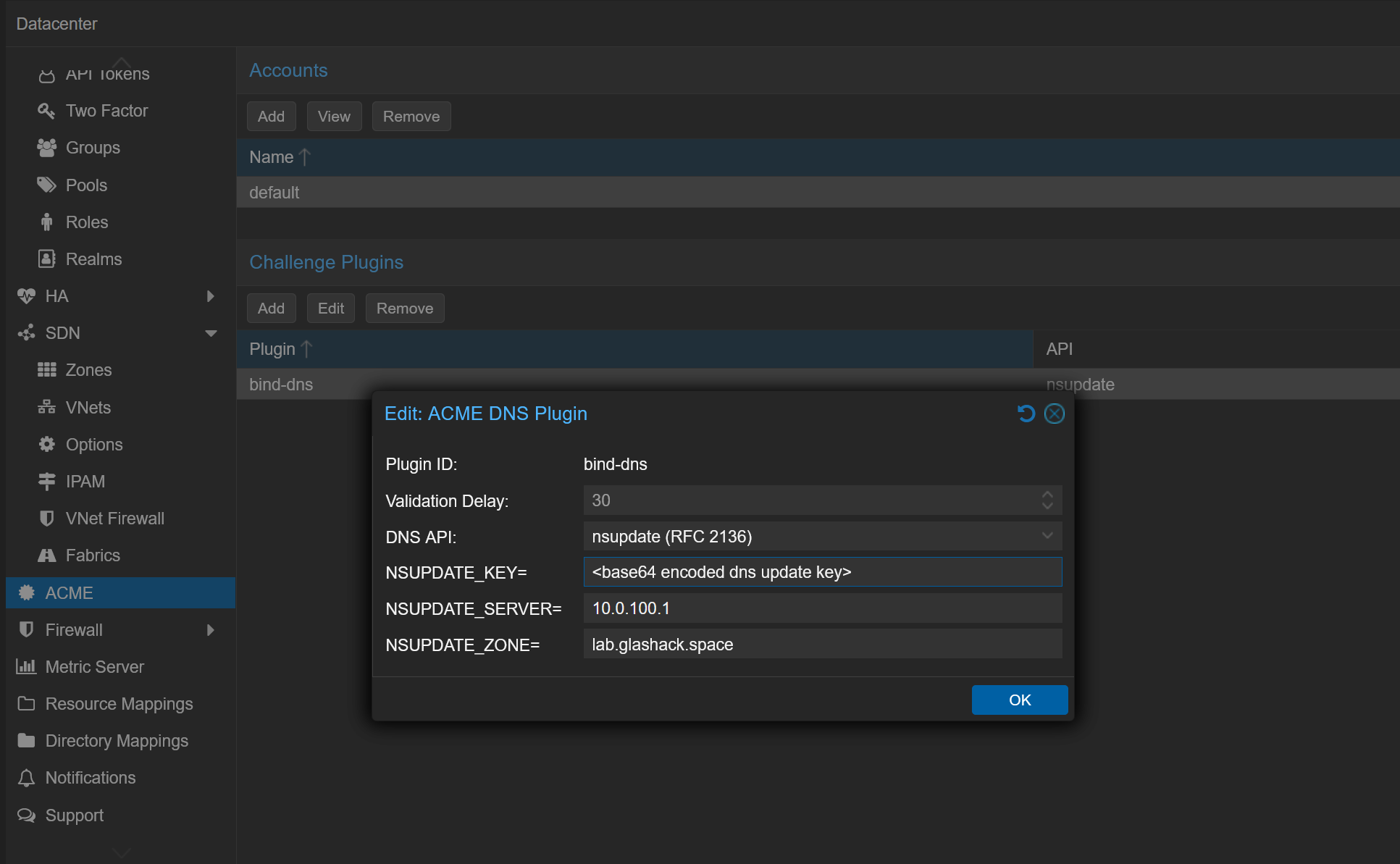
The key can be base64 encoded by running cat my.key | base64 -w 0 (where my.key contains the full output of the tsig-keygen command). This encoded string is then used in the Proxmox datacenter config shown below:
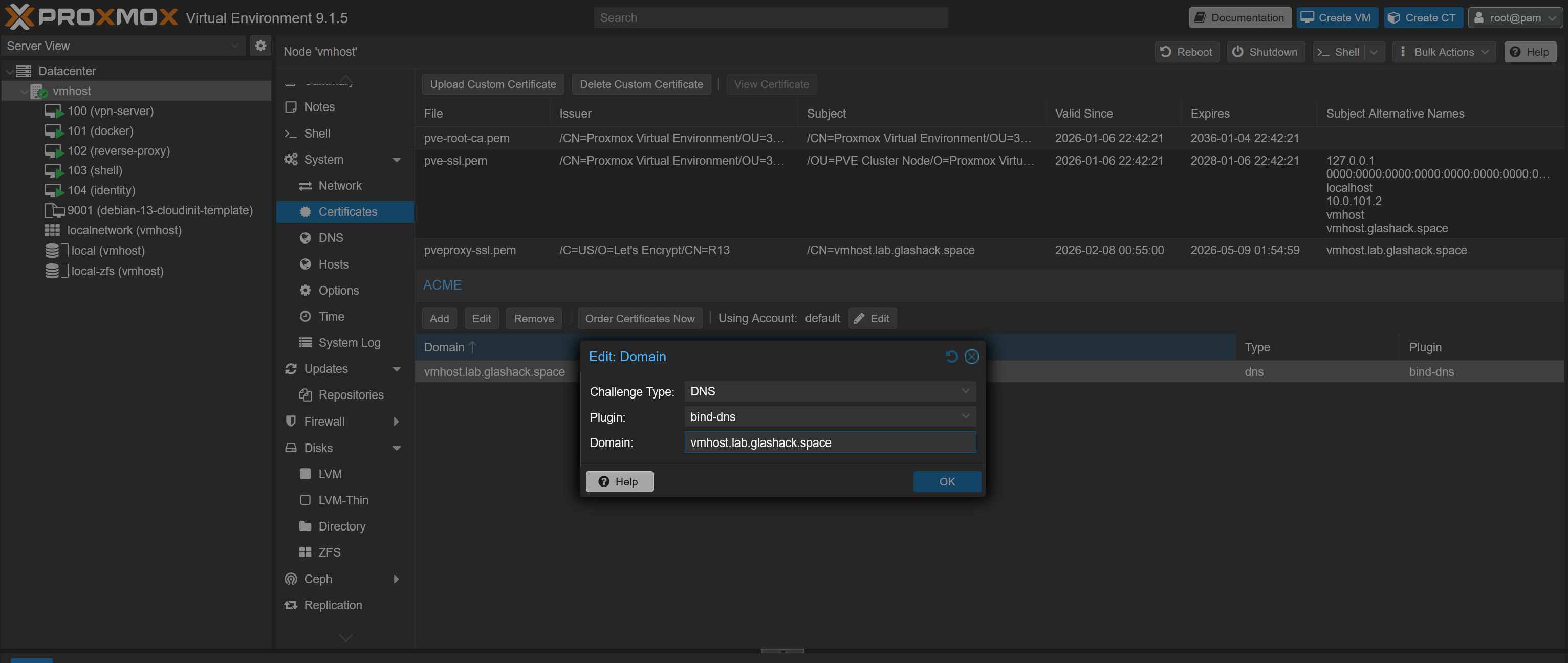
On the specific vmhost in Proxmox under 'Certificates' the following config can be created (using the bind-dns plugin defined earlier). Then click 'Order Certificates Now' to run the DNS challenge and get the HTTPS certs.
More information on the DNS configuration in the hackerspace is available on the dedicated page: DNS.
Single Sign On (SSO)
We have a Keycloak instance which is used to provide identity services in the hackerspace. This is configured in Proxmox under Datacenter > Permissions > Realms:
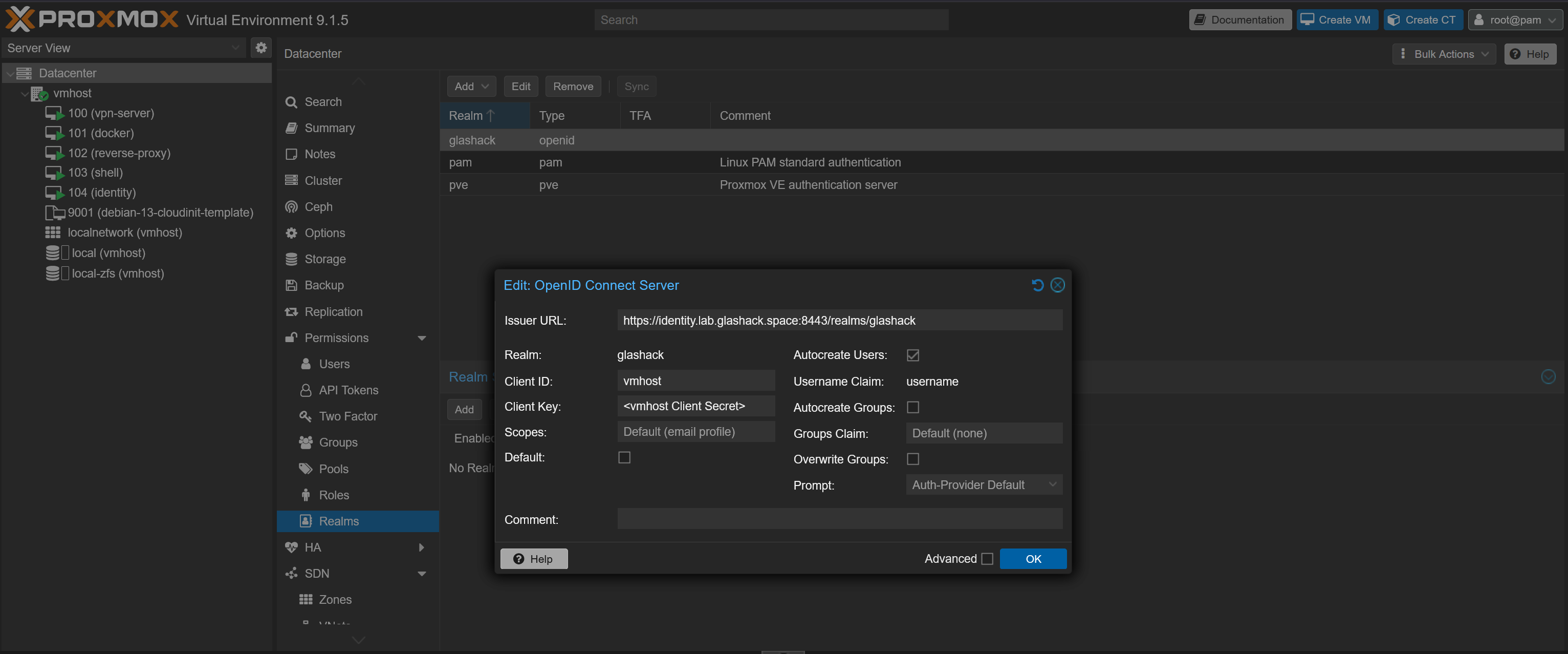
A corresponding OpenID Client is configured in Keycloak. More info on the dedicated identity page here: Identity.
When users sign into Proxmox using SSO for the first time a new user is created in Proxmox. By default they have no permissions. Specific permissions can be added by a Proxmox admin.